Sunday, November 13, 2011

All keyboard Shortcuts

Windows Shortcuts

  • Shift + F10 right-clicks.
  • Win + L (XP Only): Locks keyboard. Similar to Lock Workstation.
  • Win + F or F3: Open Find dialog. (All Files) F3 may not work in some applications which use F3 for their own find dialogs.
  • Win + Control + F: Open Find dialog. (Computers)
  • Win + U: Open Utility Manager.
  • Win + F1: Open Windows help.
  • Win + Pause: Open System Properties dialog.
  • Win + Tab: Cycle through taskbar buttons. Enter clicks, AppsKey or Shift + F10 right-clicks.
  • Win + Shift + Tab: Cycle through taskbar buttons in reverse.
  • Alt + Tab: Display Cool Switch. More commonly known as the AltTab dialog.
  • Alt + Shift + Tab: Display Cool Switch; go in reverse.
  • Alt + Escape: Send active window to the bottom of the z-order.
  • Alt + Shift + Escape: Activate the window at the bottom of the z-order.
  • Alt + F4: Close active window; or, if all windows are closed, open shutdown dialog.
  • Shift while a CD is loading: Bypass AutoPlay.
  • Shift while login: Bypass startup folder. Only those applications will be ignored which are in the startup folder, not those started from the registry (Microsoft\Windows\CurrentVersion\Run\)
  • Ctrl + Alt + Delete or Ctrl + Alt + NumpadDel (Both NumLock states): Invoke the Task Manager or NT Security dialog.
  • Ctrl + Shift + Escape (2000/XP ) or (Ctrl + Alt + NumpadDot) : Invoke the task manager. On earlier OSes, acts like Ctrl + Escape.
  • Print screen: Copy screenshot of current screen to clipboard.
  • Alt + Print screen: Copy screenshot of current active window to clipboard.
  • Ctrl + Alt + Down Arrow: Invert screen. Untested on OS's other than XP.
  • Ctrl + Alt + Up Arrow: Undo inversion.
  • Win + B : Move focus to systray icons.
 

General

  • Ctrl + C or Ctrl + Insert: Copy.
  • Ctrl + X or Shift + Delete: Cut.
  • Ctrl + V or Shift + Insert: Paste/Move.
  • Ctrl + N: New... File, Tab, Entry, etc.
  • Ctrl + S: Save.
  • Ctrl + O: Open...
  • Ctrl + P: Print.
  • Ctrl + Z: Undo.
  • Ctrl + A: Select all.
  • Ctrl + F: Find...
  • Ctrl+W : to close the current window
  • Ctrl + F4: Close tab or child window.
  • F1: Open help.
  • F11: Toggle full screen mode.
  • Alt or F10: Activate menu bar.
  • Alt + Space: Display system menu. Same as clicking the icon on the titlebar.
  • Escape: Remove focus from current control/menu, or close dialog box.


General Navigation 

  • Tab: Forward one item.
  • Shift + Tab: Backward one item.
  • Ctrl + Tab: Cycle through tabs/child windows.
  • Ctrl + Shift + Tab: Cycle backwards through tabs/child windows.
  • Enter: If a button's selected, click it, otherwise, click default button.
  • Space: Toggle items such as radio buttons or checkboxes.
  • Alt + (Letter): Activate item corresponding to (Letter). (Letter) is the underlined letter on the item's name.
  • Ctrl + Left: Move cursor to the beginning of previous word.
  • Ctrl + Right: Move cursor to the beginning of next word.
  • Ctrl + Up: Move cursor to beginning of previous paragraph. This and all subsequent Up/Down hotkeys in this section have only been known to work in Rich Edit controls.
  • Ctrl + Down: Move cursor to beginning of next paragraph.
  • Shift + Left: Highlight one character to the left.
  • Shift + Right: Highlight one character to the right.
  • Shift + Up: Highlight from current cursor position, to one line up.
  • Shift + Down: Highlight from current cursor position, to one line down.
  • Ctrl + Shift + Left: Highlight to beginning of previous word.
  • Ctrl + Shift + Right: Highlight to beginning of next word.
  • Ctrl + Shift + Up: Highlight to beginning of previous paragraph.
  • Ctrl + Shift + Down: Highlight to beginning of next paragraph.
  • Home: Move cursor to top of a scrollable control.
  • End: Move cursor to bottom of a scrollable control.


File Browser

  • Arrow Keys: Navigate.
  • Shift + Arrow Keys: Select multiple items.
  • Ctrl + Arrow Keys: Change focus without changing selection. "Focus" is the object that will run on Enter. Space toggles selection of the focused item.
  • (Letter): Select first found item that begins with (Letter).
  • BackSpace: Go up one level to the parent directory.
  • Alt + Left: Go back one folder.
  • Alt + Right: Go forward one folder.
  • Enter: Activate (Double-click) selected item(s).
  • Alt + Enter: View properties for selected item.
  • F2: Rename selected item(s).
  • Ctrl + NumpadPlus: In a Details view, resizes all columns to fit the longest item in each one.
  • Delete: Delete selected item(s).
  • Shift + Delete: Delete selected item(s); bypass Recycle Bin.
  • Ctrl while dragging item(s): Copy.
  • Ctrl + Shift while dragging item(s): Create shortcut(s).
  • In tree pane, if any:
  • Left: Collapse the current selection if expanded, or select the parent folder.
  • Right: Expand the current selection if collapsed, or select the first subfolder.
  • Numpad Asterisk: Expand currently selected directory and all subdirectories. No undo.
  • Numpad Plus: Expand currently selected directory.
  • Numpad Minus: Collapse currently selected directory.


Accessibility

  • Right Shift for eight seconds: Toggle FilterKeys on and off. FilterKeys must be enabled.
  • Left Alt + Left Shift + PrintScreen: Toggle High Contrast on and off. High Contrast must be enabled.
  • Left Alt + Left Shift + NumLock: Toggle MouseKeys on and off. MouseKeys must be enabled.
  • NumLock for five seconds: Toggle ToggleKeys on and off. ToggleKeys must be enabled.
  • Shift five times: Toggle StickyKeys on and off. StickyKeys must be enabled.
  • 6.) Microsoft Natural Keyboard with IntelliType Software Installed
  • Win + L: Log off Windows.
  • Win + P: Open Print Manager.
  • Win + C: Open control panel.
  • Win + V: Open clipboard.
  • Win + K: Open keyboard properties.
  • Win + I: Open mouse properties.
  • Win + A: Open Accessibility properties.
  • Win + Space: Displays the list of Microsoft IntelliType shortcut keys.
  • Win + S: Toggle CapsLock on and off.


Remote Desktop Connection Navigation

  • Ctrl + Alt + End: Open the NT Security dialog.
  • Alt + PageUp: Switch between programs.
  • Alt + PageDown: Switch between programs in reverse.
  • Alt + Insert: Cycle through the programs in most recently used order.
  • Alt + Home: Display start menu.
  • Ctrl + Alt + Break: Switch the client computer between a window and a full screen.
  • Alt + Delete: Display the Windows menu.
  • Ctrl + Alt + NumpadMinus: Place a snapshot of the entire client window area on the Terminal server clipboard and provide the same functionality as pressing Alt + PrintScreen on a local computer.
  • Ctrl + Alt + NumpadPlus: Place a snapshot of the active window in the client on the Terminal server clipboard and provide the same functionality as pressing PrintScreen on a local computer.


Mozilla Firefox Shortcuts

  • Ctrl + Tab or Ctrl + PageDown: Cycle through tabs.
  • Ctrl + Shift + Tab or Ctrl + PageUp: Cycle through tabs in reverse.
  • Ctrl + (1-9): Switch to tab corresponding to number.
  • Ctrl + N: New window.
  • Ctrl + T: New tab.
  • Ctrl + L or Alt + D or F6: Switch focus to location bar.
  • Ctrl + Enter: Open location in new tab.
  • Shift + Enter: Open location in new window.
  • Ctrl + K or Ctrl + E: Switch focus to search bar.
  • Ctrl + O: Open a local file.
  • Ctrl + W: Close tab, or window if there's only one tab open.
  • Ctrl + Shift + W: Close window.
  • Ctrl + S: Save page as a local file.
  • Ctrl + P: Print page.
  • Ctrl + F or F3: Open find toolbar.
  • Ctrl + G or F3: Find next...
  • Ctrl + Shift + G or Shift + F3: Find previous...
  • Ctrl + B or Ctrl + I: Open Bookmarks sidebar.
  • Ctrl + H: Open History sidebar.
  • Escape: Stop loading page.
  • Ctrl + R or F5: Reload current page.
  • Ctrl + Shift + R or Ctrl + F5: Reload current page; bypass cache.
  • Ctrl + U: View page source.
  • Ctrl + D: Bookmark current page.
  • Ctrl + NumpadPlus or Ctrl + Equals (+/=): Increase text size.
  • Ctrl + NumpadMinus or Ctrl + Minus: Decrease text size.
  • Ctrl + Numpad0 or Ctrl + 0: Set text size to default.
  • Alt + Left or Backspace: Back.
  • Alt + Right or Shift + Backspace: Forward.
  • Alt + Home: Open home page.
  • Ctrl + M: Open new message in integrated mail client.
  • Ctrl + J: Open Downloads dialog.
  • F6: Switch to next frame. You must have selected something on the page already, e.g. by use of Tab.
  • Shift + F6: Switch to previous frame.
  • Apostrophe ('): Find link as you type.
  • Slash (/): Find text as you type.


Gmail Shortcuts

  • Note: Must have "keyboard shortcuts" on in settings.
  • C: Compose new message.
  • Shift + C: Open new window to compose new message.
  • Slash (/): Switch focus to search box.
  • K: Switch focus to the next most recent email. Enter or "O" opens focused email.
  • J: Switch focus to the next oldest email.
  • N: Switch focus to the next message in the "conversation." Enter or "O" expands/collapses messages.
  • P: Switch focus to the previous message.
  • U: Takes you back to the inbox and checks for new mail.
  • Y: Various actions depending on current view:
  • Has no effect in "Sent" and "All Mail" views.
  • Inbox: Archive email or message.
  • Starred: Unstar email or message.
  • Spam: Unmark as spam and move back to "Inbox."
  • Trash: Move back to "Inbox."
  • Any label: Remove the label.
  • X: "Check" an email. Various actions can be performed against all checked emails.
  • S: "Star" an email. Identical to the more familiar term, "flagging."
  • R: Reply to the email.
  • A: Reply to all recipients of the email.
  • F: Forward an email.
  • Shift + R: Reply to the email in a new window.
  • Shift + A: Reply to all recipients of the email in a new window.
  • Shift + F: Forward an email in a new window.
  • Shift + 1 (!): Mark an email as spam and remove it from the inbox.
  • G then I: Switch to "Inbox" view.
  • G then S: Switch to "Starred" view.
  • G then A: Switch to "All Mail" view.
  • G then C: Switch to "Contacts" view.
  • G then S: Switch to "Drafts" view.


List of F1-F9 Key Commands for the Command Prompt

  • F1 / right arrow: Repeats the letters of the last command line, one by one.
  • F2: Displays a dialog asking user to "enter the char to copy up to" of the last command line
  • F3: Repeats the last command line
  • F4: Displays a dialog asking user to "enter the char to delete up to" of the last command line
  • F5: Goes back one command line
  • F6: Enters the traditional CTRL+Z (^z)
  • F7: Displays a menu with the command line history
  • F8: Cycles back through previous command lines (beginning with most recent)
  • F9: Displays a dialog asking user to enter a command number, where 0 is for first command line entered.
  • Alt+Enter: toggle full Screen mode.
  • up/down: scroll thru/repeat previous entries
  • Esc: delete line
  • Note: The buffer allows a maximum of 50 command lines. After this number is reached, the first line will be replaced in sequence.
Helpful accessibility keyboard shortcuts
  • Switch FilterKeys on and off. Right SHIFT for eight seconds
  • Switch High Contrast on and off. Left ALT +left SHIFT +PRINT SCREEN
  • Switch MouseKeys on and off. Left ALT +left SHIFT +NUM LOCK
  • Switch StickyKeys on and off. SHIFT five times
  • Switch ToggleKeys on and off. NUM LOCK for five seconds

Funny Computer Trick

Check out these funny trick.
 
Copy and paste the java script code to the address bar of your browser

 
AND


2: Press enter and watch your window's "shaking it". You can change the value of i if you wish :-)

Top Ten Tips To Improve System Speed

1. Let your PC boot up completely before opening any applications.

2. Refresh the desktop after closing any application. This will remove any unused files from the RAM.
3. Do not set very large file size images as your wallpaper. Do not keep a wallpaper at all if your PC is low on RAM (less than 64 MB).
4. Do not clutter your Desktop with a lot of shortcuts. Each shortcut on the desktop uses up to 500 bytes of RAM

5. Empty the recycle bin regularly. The files are not really deleted from your hard drive until you empty the recycle bin.

6. Delete the temporary internet files regularly.


7. Defragment your hard drive once every two months. This will free up a lot of space on your hard drive and rearrange the files so that your applications run faster.
8. Always make two partitions in your hard drive. Install all large Softwares (like PSP, Photoshop, 3DS Max etc) in the second partition. Windows uses all the available empty space in C drive as virtual memory when your Computer RAM is full. Keep the C Drive as empty as possible.
9. When installing new Softwares disable the option of having a tray icon. The tray icons use up available RAM, and also slow down the booting of your PC. Also disable the option of starting the application automatically when the PC boots. You can disable these options later on also from the Tools or preferences menu in your application.

10. Protect your PC from dust. Dust causes the CPU cooling fan to jam and slow down thereby gradually heating your CPU and affecting the processing speed. Use compressed air to blow out any dust from the CPU. Never use vacuum.
RAM IS THE WORKING AREA (DESKTOP) OF THE CPU, KEEP IT AS EMPTY AND UNCLUTTERED AS POSSIBLE!

Tutorial On How To Repair Detectable But Corrupt USB DRIVES

Have you suddenly encountered
with the problem that when you
plug in your USB drive, the
Removable media shows up but
when you try to open it, it returns
with the message “Please insert a
disk in to drive H:”.
If yes then you have been on right
tutorial page.
By applying this simple method
you ’ll have 80 % chance to get back
your USB drive hardware.
This works only in the above error
condition. If the windows doesn ’t
detect your USB drive, then there is
probably flaw in the USB media.
Please keep in mind that, you’ll have
to lose your data when following
this tutorial.
Plug in your USB drive.
Go to Start>My Computer, right click
on My Computer icon and click on
Manage menu.

Computer Management window will
pop up. Click on Disk management
under Storage tree menu.

Now at the right side of the window
right click on your removable media.
(unlike the image below, it will show
unknown information), right click on
your removable media and choose
Change Drive Letter and Paths.

Now in new window choose any
drive later that is not taken by any
media (M:, N: , :K: etc).
Click on ok button and close the
management window. Try opening
your pendirve. There may be the
chance to have your pendrive
recovered if this method worked.
If the problem still prevails then
follow the above tutorial but instead
of choosing Change drive letter and
paths, choose Format and give a
quick format to it.

Now you’ll have finally lost your data
but the pendrive is safe in your
hands.
Hope this tutorial was working. If it
didn ’t please do comment me. I’ll
find other solutions as well.

How to open office 2007 files into Office 2003?

This tip will help you to resolve the compatibility issues between the Office 2003 and Office 2007. Because all programs in office 2003 used the old file extensions for its different programs.

For example Word 2003 saved files with extension .doc, Excel 2003 with .xls and PowerPoint with .ppt. but on the other office 2007 used the new file extensions for its different programs. For example Word 2007 saved files with extension .docx, Excel 2007 with .xlsx and PowerPoint with .pptx. Now the problem is that when you will try to open office 2007 files into office 2003 and you will not open the file due to compatibility issues between both office versions. Microsoft provides a free compatibility pack to convert office 2007 documents to the office 2003 format. There are many third party free converter are available but here we are using Microsoft office compatibility pack.
Follow the given steps to download free Microsoft compatibility pack and install it.
To use this feature, you will need to be logged into your computer with administrative rights.


Visit the following link to download the Microsoft compatibility pack:

Download here


Instructions:

When you have downloaded the file, double click on FileFormatConverter.exe file to start the installation.

Now here it’s simply a case of pretending you’ve read the license terms and clicking continue.

Now click on Ok button to complete the installation.

Once the process is done, you can enjoy opening .docx files on Word 2003.

How To Password Protect Microsoft Word 2007 Files

In this tutorial I will explain you the step by step procedure with screenshots On How To Password Protect Microsoft Word 2007 Files

1. Click on the Microsoft Office Button present on the top left corner of the window.
2. Now Click on the Save As option


3. Now a new window will pop up.Click on Tools option at the bottom of the window.

4. Select General Options


5. Type the desired password you want
6. Click OK.


That's all

HOW TO FORMAT A PC w/ PICTURES WINDOWS 7 & ,XP

I have made this tutorial for the ones who are always posting and making threads that always asks on how to format a computer, how to create a partition and how to repair the operating system of a computer.


Important things that you need:


computer
bootable cd/dvd of any operating system that you want
COMMON SENSE


here we go, this is how to reformat a computer:

1. Open your computer and open you cd/dvd rom and put in your bootable cd/dvd of your chosen operating system, then restart your computer.

2. While the computer reboots, you will see this image on your screen.


3. Press any key or Enter, spacebar, or anything you like, then wait (you will see this message "setup is inspecting your system configuration..."), don't do anything until it comes to this page: (Windows Setup, setup is loading files page )


4. Wait until loading of files is finished.

5. A page will appear that looks like this, then press ENTER to continue.


6. EULA (end-user license agreement) page will appear then press F8 to agree and continue the setup.


7. A page will appear that displays the existing operating system installed on your pc, then press ENTER as stated below to continue setup.

8. The screen will show the different partitions on your computer and it will look like the image below, highlight the partition named C: by following the instructions below the screen on how to select an option, then again press ENTER to setup windows on the selected partition.


9. There will be four options that will be displayed, choose FORMAT THE PARTITION USING NTFS FILE SYSTEM or you can choose the first option FORMAT THE PARTITION USING NTFS FILE SYSTEM (QUICK), then press ENTER again to continue setup.


10. Then wait until setup formats the partition.


11. After formatting, wait again until setup finishes copying files to windows folders, this may take minutes.


12. After copying of files, the setup will now reboot to continue the installation, wait 15 seconds and it will automatically reboot, or press ENTER if you can not wait 15 seconds.


13. The computer will reboot and wait until setups continues, you will see the image below and wait for about 30 to 45 minutes for setup to finish installation.


14. You have now successfully formatted your computer and a fresh copy of windows is installed.

(NOTE: Pasensya na poh at tinatamad na ako ngayong araw, baka tomorrow i will update this thread and add another tutorail, tutorial on how to setup WINDOWS on a brand new computer, repair a corrupted operating system, and some additional tutorials about formatting a computer.)


HOW TO INSTALL WINDOWS VISTA ON A COMPUTER


How to install Windows 7 to your computer

NOTE: Yung images kuha koh lang sa internet pero yung tutorial ako gumawa, baka may magviolent reaction eh.hehe.


Formatting a computer and have a fresh install of Windows 7

1. Open up your pc and press DEL (delete) to enter bios setup (nakalimutan koh ilagay yung step na ito dun sa tutorial ng XP)

note: normally delete is pressed to enter bios setup pero minsan may option din na ESC or F1 or F2 or F10.

2. On your bios setup, change your first boot device to CD/DVD rom then change the second boot device to your HDD.

3. Save the changes you have made (makikita sa baba ng screen kung ano ang pipindutin) and insert you windows 7 CD/DVD in your CD/DVD rom then reboot our computer.

4. Press any key for the computer to boot from the cd. (parang yung sa windows xp)

5. Then again wait until windows setup has finished loading files.


6. After loading the files, the setup is now starting windows.

7. The first step that will appear on your computer is the windows 7 setup that asks for the language you want to install, normally language is english and kung want nyo ng ibang language just click the drop down option and choose whatever you like, the click NEXT.

This image has been resized. Click this bar to view the full image. The original image is sized 800x600.


8. The setup will ask you to install windows 7 and you will see an option like this "INSTALL NOW", click it to install.

This image has been resized. Click this bar to view the full image. The original image is sized 800x600.


9. Setup is now starting, wait until EULA is displayed on your screen, check the box below that says "I accept the licnese agreement", then click NEXT.

This image has been resized. Click this bar to view the full image. The original image is sized 800x600.


10. A window wil appear and will give you two options, since we are formatting your computer, choose the option "CUSTOM(ADVANCEED)".

This image has been resized. Click this bar to view the full image. The original image is sized 800x600.


11. The setup will now show you your local disks or drives, choose the disk that has the previos operating system, normally it is C:, then click "ADVANCED" on the side and you will see three options added under the local disks, there you will see the option "DELETE"(delete an existing partition), "FORMAT"(formats the selected partition), "EXTEND"(extends the size of the selected partition if there is still unpatitioned space).

This image has been resized. Click this bar to view the full image. The original image is sized 800x600.


12. Since we are just formatting you computer and the partitions are already made, choos the optio "FORMAT", if you want to change or create a new partition, click "DELETE" to delete the previous partition and create a new one.

13. Afterchoosing the "FORMAT" option, the setup will now format your drive, after formatting, click "NEXT" for the setup to continue.

14. The setup will now copy and install files, you just need to wait for it to finish.

This image has been resized. Click this bar to view the full image. The original image is sized 800x600.


15. While the setup continues, your computer will automatically reboot.
NOTE: While the computer reboots, do not press any key so it will not boot your cd/dvd again.

This image has been resized. Click this bar to view the full image. The original image is sized 800x600.


16. Wait until setup finishes.

17. Your computer will again reboot and wait, the setup is now preparing you computer for fist use of the new OS.

This image has been resized. Click this bar to view the full image. The original image is sized 800x600.


18. There will be personnal information needed to be typed as asked by the setup.(username, password,etc....)

This image has been resized. Click this bar to view the full image. The original image is sized 800x600.


This image has been resized. Click this bar to view the full image. The original image is sized 800x600.


19. The setup will ask for your product key then click "NEXT", you can enter your product key later if you want.

This image has been resized. Click this bar to view the full image. The original image is sized 800x600.


20. And the setup goes and it will ask for settings to be used on updating and protecting your computer, choose "RECOMMENDED SETTINGS".

This image has been resized. Click this bar to view the full image. The original image is sized 800x600.


21. The setup will ask for the date and time, our time zone is pacific time GMT 8 if i'm correct.(Common sense na poh toh)

This image has been resized. Click this bar to view the full image. The original image is sized 800x600.


22. Setup will ask you to select your computers current location, choose "HOME NETWORK" then wait.

This image has been resized. Click this bar to view the full image. The original image is sized 800x600.


23. WINDOWS 7 IS INSTALLED.....

This image has been resized. Click this bar to view the full image. The original image is sized 1024x768.

How to fix corrupted files in Windows XP, Vista, & Windows 7?

This tutorial has been made so people that are having problems with corrupted files in Windows XP, Vista or Windows 7, can learn how to fix them easy.

Requirements: Windows XP, Windows Vista, or Windows 7 Operating System + Windows XP, Vista, or Windows 7 CD

Steps:
1. Place your XP, Vista, or Windows7 CD in your cd/dvd drive
2.Click start
3.Click Run
4. Type in "sfc /scannow" (without ") Now it should all load, and fix all your corrupted file on Windows XP, Vista, or Windows 7 OS.

Hope it helps you.

How to auto-shutdown your computer in a safe & easy way...

Halimbawa, gusto mo ishutdown ang pc mo ng 11:30 am ng automatic.
Click start > run > type : at 11:30 shutdown -s

Para icancel o iabort: Click start > run > type shutdown -a

Note:
Dapat 24 hour yung time. Halimbawa 11:30 pm nyo gusto iauto-shutdown, dapat ganito ang itatype nyo at 23:30 shutdown -s

Hope makatulong to sa inyo..

Install Windows XP and Windows 7 Operating System in less than 15 minutes

Now, this tip will be very helpful for those who frequently install windows xp operating system.
Normally OS installation takes around 40 minutes to complete, but through this trick you can now save 10-15 minutes.
This simple tricks goes this way.


1. Boot through Windows XP CD.

2. After all the files are completely loaded, you get the option to select the partition. Select “c”.

3. Now Format the partition, whether it is normal or quick with NTFS or FAT
4. Once the formatting is completed, All the setup files required for installation are copied. Restart your system by pressing Enter. Now, here begins the Simple trick to save 10-15 minutes.

5. After rebooting, you get a screen where it takes 40 minutes to complete or finalize the OS installation.

6. Now, Press SHIFT + F10 Key -> This opens command prompt.

7. Enter “Taskmgr” at the command prompt window. This will open Task Manager.

8. Click the Process Tab, here we find a process called Setup.exe -> Right Click on Setup.exe -> Set Priority -> Select High or Above Normal.
Initially it will be Normal.


That's it, no more work to do. Relax your self and see how fast the installation process completes.

Enable missing/ disabled windows features caused by a virus manually

Ginawa ko po ang thread na 'to para maging guide naten kung sakaling nadisable ang ilang windows features/ menus ng ating Computer dahil sa virus. Ilang beses na kasi itong nangyari saken, kaya ito ginawan ko na lang ng thread. Nicompile ko na lang lahat para mas madali sa ating lahat, sana makatulong din sa inyo.

Mas madali sa Group Policy Editor kesa sa Regedit kaya Group Policy Editor na lang ang gamitin naten.

Enable:
1. Run
2. Command Prompt
3. Folder Options
4. Task Manager
5. Regedit
6. Search
7. Recycle Bin
8. System Restore

Steps:
1. Click Start.
2. Click Run.
3. Type GPEDIT.msc
4. Hit Enter or Click Ok

Continuation:

*Kapag walang Run sa Start Menu:
Go to User Configuration > Administrative Templates > Start Menu and Taskbar.
Double-click Remove Run menu from Start Menu then select Disabled, then OK. Done!

*Kapag Disabled ang Command Prompt:
Go to User Configuration > Administrative Templates > System
Double-click Prevent access to the command prompt then select Disabled, then OK. Done!
or
kung gusto nyo ng instant cmd using notepad:
Right Click (Desktop) > New > Text Document > Type "command.com" (without ") > save as cmd.bat then open it. Done!

*Kapag Walang Folder Options:
Go to User Configuration > Administrative Templates > Windows Components > Windows Explorer..
Double-click Removes the Folder Options menu item from the Tools menu then select Disabled, then OK. Done!

*Kapag Disabled ang Task Manager
Go to User Configuration > Administrative Templates > System > Ctrl+Alt+Del Options.
Double-click Remove Task Manager then select Disabled, then OK. Done!

*Kapag Disabled ang Regedit:
Go to User Configuration > Administrative Templates > System
Double-click Prevent access to registry editing tools then select Disabled, then OK.. Done!

*Kapag Walang Search sa Start Menu:
Go to User Configuration > Administrative Templates > Start Menu and Taskbar..
Double-click Remove Search menu from Start Menu then select Disabled, then OK. Done!

*Kapag Walang Recycle Bin sa Desktop:
Go to User Configuration > Administrative Templates > Desktop..
Double-click Remove Recycle Bin icon from desktop then select Disabled, then OK. Done!

*Kapag Walang System Restore Tab sa Computer Properties:
Go to Computer Configuration > Administrative Templates > System > System Restore
Double-click Turn off Configuration then select Disabled, then OK. Done!

Yan ang mga problem na madalas kong maencounter at ng mga classmate ko dahil sa virus sa ComLab namen.

Saturday, November 12, 2011

23 Ways To Speed WinXP, Not only Defrag

Since defragging the disk won't do much to improve Windows XP performance, here are 23 suggestions that will. Each can enhance the performance and reliability of your customers' PCs. Best of all, most of them will cost you nothing.

1.) To decrease a system's boot time and increase system performance, use the money you save by not buying defragmentation software -- the built-in Windows defragmenter works just fine -- and instead equip the computer with an Ultra-133 or Serial ATA hard drive with 8-MB cache buffer.

2.) If a PC has less than 512 MB of RAM, add more memory. This is a relatively inexpensive and easy upgrade that can dramatically improve system performance.

3.) Ensure that Windows XP is utilizing the NTFS file system. If you're not sure, here's how to check: First, double-click the My Computer icon, right-click on the C: Drive, then select Properties. Next, examine the File System type; if it says FAT32, then back-up any important data. Next, click Start, click Run, type CMD, and then click OK. At the prompt, type CONVERT C: /FS:NTFS and press the Enter key. This process may take a while; it's important that the computer be uninterrupted and virus-free. The file system used by the bootable drive will be either FAT32 or NTFS. I highly recommend NTFS for its superior security, reliability, and efficiency with larger disk drives.

4.) Disable file indexing. The indexing service extracts information from documents and other files on the hard drive and creates a "searchable keyword index." As you can imagine, this process can be quite taxing on any system.

The idea is that the user can search for a word, phrase, or property inside a document, should they have hundreds or thousands of documents and not know the file name of the document they want. Windows XP's built-in search functionality can still perform these kinds of searches without the Indexing service. It just takes longer. The OS has to open each file at the time of the request to help find what the user is looking for.


Most people never need this feature of search. Those who do are typically in a large corporate environment where thousands of documents are located on at least one server. But if you're a typical system builder, most of your clients are small and medium businesses. And if your clients have no need for this search feature, I recommend disabling it.

Here's how: First, double-click the My Computer icon. Next, right-click on the C: Drive, then select Properties. Uncheck "Allow Indexing Service to index this disk for fast file searching." Next, apply changes to "C: subfolders and files," and click OK. If a warning or error message appears (such as "Access is denied"), click the Ignore All button.

5.) Update the PC's video and motherboard chipset drivers. Also, update and configure the BIOS. For more information on how to configure your BIOS properly, see this article on my site.

6.) Empty the Windows Prefetch folder every three months or so. Windows XP can "prefetch" portions of data and applications that are used frequently. This makes processes appear to load faster when called upon by the user. That's fine. But over time, the prefetch folder may become overloaded with references to files and applications no longer in use. When that happens, Windows XP is wasting time, and slowing system performance, by pre-loading them. Nothing critical is in this folder, and the entire contents are safe to delete.

7.) Once a month, run a disk cleanup. Here's how: Double-click the My Computer icon. Then right-click on the C: drive and select Properties. Click the Disk Cleanup button -- it's just to the right of the Capacity pie graph -- and delete all temporary files.

8.) In your Device Manager, double-click on the IDE ATA/ATAPI Controllers device, and ensure that DMA is enabled for each drive you have connected to the Primary and Secondary controller. Do this by double-clicking on Primary IDE Channel. Then click the Advanced Settings tab. Ensure the Transfer Mode is set to "DMA if available" for both Device 0 and Device 1. Then repeat this process with the Secondary IDE Channel.

9.) Upgrade the cabling. As hard-drive technology improves, the cabling requirements to achieve these performance boosts have become more stringent. Be sure to use 80-wire Ultra-133 cables on all of your IDE devices with the connectors properly assigned to the matching Master/Slave/Motherboard sockets. A single device must be at the end of the cable; connecting a single drive to the middle connector on a ribbon cable will cause signaling problems. With Ultra DMA hard drives, these signaling problems will prevent the drive from performing at its maximum potential. Also, because these cables inherently support "cable select," the location of each drive on the cable is important. For these reasons, the cable is designed so drive positioning is explicitly clear.

10.) Remove all spyware from the computer. Use free programs such as AdAware by Lavasoft or SpyBot Search & Destroy. Once these programs are installed, be sure to check for and download any updates before starting your search. Anything either program finds can be safely removed. Any free software that requires spyware to run will no longer function once the spyware portion has been removed; if your customer really wants the program even though it contains spyware, simply reinstall it. For more information on removing Spyware visit this Web Pro News page.

11.) Remove any unnecessary programs and/or items from Windows Startup routine using the MSCONFIG utility. Here's how: First, click Start, click Run, type MSCONFIG, and click OK. Click the StartUp tab, then uncheck any items you don't want to start when Windows starts. Unsure what some items are? Visit the WinTasks Process Library. It contains known system processes, applications, as well as spyware references and explanations. Or quickly identify them by searching for the filenames using Google or another Web search engine.

12.) Remove any unnecessary or unused programs from the Add/Remove Programs section of the Control Panel.

13.) Turn off any and all unnecessary animations, and disable active desktop. In fact, for optimal performance, turn off all animations. Windows XP offers many different settings in this area. Here's how to do it: First click on the System icon in the Control Panel. Next, click on the Advanced tab. Select the Settings button located under Performance. Feel free to play around with the options offered here, as nothing you can change will alter the reliability of the computer -- only its responsiveness.

14.) If your customer is an advanced user who is comfortable editing their registry, try some of the performance registry tweaks offered at Tweak XP.

15.) Visit Microsoft's Windows update site regularly, and download all updates labeled Critical. Download any optional updates at your discretion.

16.) Update the customer's anti-virus software on a weekly, even daily, basis. Make sure they have only one anti-virus software package installed. Mixing anti-virus software is a sure way to spell disaster for performance and reliability.

17.) Make sure the customer has fewer than 500 type fonts installed on their computer. The more fonts they have, the slower the system will become. While Windows XP handles fonts much more efficiently than did the previous versions of Windows, too many fonts -- that is, anything over 500 -- will noticeably tax the system.

18.)
Do not partition the hard drive. Windows XP's NTFS file system runs more efficiently on one large partition. The data is no safer on a separate partition, and a reformat is never necessary to reinstall an operating system. The same excuses people offer for using partitions apply to using a folder instead. For example, instead of putting all your data on the D: drive, put it in a folder called "D drive." You'll achieve the same organizational benefits that a separate partition offers, but without the degradation in system performance. Also, your free space won't be limited by the size of the partition; instead, it will be limited by the size of the entire hard drive. This means you won't need to resize any partitions, ever. That task can be time-consuming and also can result in lost data.

19.) Check the system's RAM to ensure it is operating properly. I recommend using a free program called MemTest86. The download will make a bootable CD or diskette (your choice), which will run 10 extensive tests on the PC's memory automatically after you boot to the disk you created. Allow all tests to run until at least three passes of the 10 tests are completed. If the program encounters any errors, turn off and unplug the computer, remove a stick of memory (assuming you have more than one), and run the test again. Remember, bad memory cannot be repaired, but only replaced.

20.) If the PC has a CD or DVD recorder, check the drive manufacturer's Web site for updated firmware. In some cases you'll be able to upgrade the recorder to a faster speed. Best of all, it's free.

21.) Disable unnecessary services. Windows XP loads a lot of services that your customer most likely does not need. To determine which services you can disable for your client, visit the Black Viper site for Windows XP configurations.

22.) If you're sick of a single Windows Explorer window crashing and then taking the rest of your OS down with it, then follow this tip: open My Computer, click on Tools, then Folder Options. Now click on the View tab. Scroll down to "Launch folder windows in a separate process," and enable this option. You'll have to reboot your machine for this option to take effect.

23.) At least once a year, open the computer's cases and blow out all the dust and debris. While you're in there, check that all the fans are turning properly. Also inspect the motherboard capacitors for bulging or leaks. For more information on this leaking-capacitor phenomena, you can read numerous articles on my site.


Following any of these suggestions should result in noticeable improvements to the performance and reliability of your customers' computers. If you still want to defrag a disk, remember that the main benefit will be to make your data more retrievable in the event of a crashed drive.

Increase Your Internet Speed [Download, Upload, Browsing, and Streaming]

Let's Increase Your Internet Connection Speed...

100% Working & Effective sa lahat ng internet connections.. To try is to believe..


Instructions:

Go to this site to see your current internet speed:
Speed Test

Pumili lang po kayo ng server, for example: SEATTLE, WA.

Remember the RESULT para maikumpara natin kung talagang nagwork sa inyo.

- FASTER WEB PAGE LOADING:

This tweak will help web pages load faster, it has no real effect on download speeds, just helps your pc look up websites faster thereby speeding up how fast the page loads and making web-surfing more enjoyable.

Navigate to this registry entry and change the following settings:

For XP & 2K

HKEY_LOCAL_MACHINE\SYSTEM\CurrentControlSet\Servic es\Tcpip\ServiceProvider

For 98, 98SE & ME

HKEY_LOCAL_MACHINE\System\CurrentControlSet\Servic es\VxD\MSTCP\ServiceProvider

On the right for ALL OS's change these entries: (ALL values are HEXIDECIMAL)

DnsPriority = 1
HostsPriority = 1
LocalPriority = 1
NetbtPriority = 1

To change the value right click on the value and select modify and enter the values above.


- SPEED UP NETWORK BROWSING:

* Open up regedit.
* Navigate to HKEY_LOCAL_MACHINE/Software/Microsoft/Windows/CurrentVersion/Explorer/RemoteComputer/NameSpace.

Delete the key: {D6277990-4C6A-11CF-8D87-00AA0060F5BF}.


-FASTER WEB PAGE LOADING, INCREASE DOWNLOAD & UPLOAD SPEED:

1. Right Click My Computer
2. Click Properties
3. Click the Hardware Tab
4. Open Device Manager
5. Click Ports
6. Open Communication Port
7. Click Ports Settings
8. Adjust 'Bits per second" to maximum which is 128000
9. Set Flow Control to Hardware and Click OK.

PS: Kapag inopen nyo po ang Ports at nakita nyo ang hardware ng modem nyo, ganon din po ang gawin nyo tulad sa Communication Port.


SG TCP Optimizer

Description: The TCP Optimizer is a free, easy Windows program that provides an intuitive interface for tuning and optimizing your Internet connection. There is no installation required, just download and run.

The program can aid both the novice and the advanced user in tweaking related TCP/IP parameters in the Windows Registry, making it easy to tune your system to the type of Internet connection used. The tool uses advanced algorithms, and the bandwidth*delay product to find the best TCP Window for your specific connection speed. It provides for easy tuning of all related TCP/IP parameters, such as MTU, RWIN, and even advanced ones like QoS and ToS/Diffserv prioritization. The program works with all current versions of Windows, and includes additional tools, such as testing average latency over multiple hosts, and finding the largest possible packet size (MTU).

The TCP Optimizer is targeted towards broadband internet connections, however it can be helpful with tuning any internet connection type, from dialup to Gigabit+ 

How to use and configure TCP Optimizer?

- Choose your maximum Connection Speed from the slider bar (the maximum available bandwidth, in kilobits per second)
- Choose your Network Interface, or check to Modify All Network Adapters
- Click "Optimal settings" from the radio-buttons near the bottom of the program
- Click on the "Apply changes" button and reboot

Download SG TCP Optimizer here:
http://www.speedguide.net/files/TCPOptimizer.exe


Then test your Internet Speed now...

Click here to test your Internet Speed again:
Speed Test

Enjoy Fast Internet Connection...

Kung gusto nyong ibalik sa dating settings ito po ang mga hakbang:
1. Open TCP Optimizer

2. Click File..

3. Click Windows Default Settings

4. Click OK

5. Reboot / Restart your PC..

Done!


You can also visit this thread of Sir Panget214 for more internet tweaks:

speed up your internet without any application
Most of us use Google search to search on various topics, products, tips, etc. No doubt it’s one of the best search engines available out there. In order to search something we simply enter the keywords in the search bar and search for stuff but did you ever know that there are several built in functions within Google which makes searching stuff even easier. Some of you’ll know about them. But well if you don’t, then here they are:


Google calculator:
Google search can be used as a calculator. It can calculate anything from the simplest math to the most complex equation. All you need to do is just enter the math in the search box and hit enter. You can use the following functions:
+ : add
- :subtract
* :multiply
/ :divide
^ :to the power of
sqrt : square root of a number


Dictionary Definitions:
You can define any word by entering “define:” following the word. For example define: ignoble
Google will display a list of dictionary definitions for that word.


Search for a specific title:
Suppose you came across a great article which you really liked but unfortunately forgot to bookmark it then you can find it easily with the help of Google provided you know the title of the article. Here’s how you do it:
Let’s say you read an article “Women talk three times as much as men” then you can search for it by typing “intitle: Women talk three times as much as men”


Google Convertor:
Using this feature you can convert units like millimeter into inches, kilometers into miles, liters into ml, etc. You can do so by typing ‘25km in miles’ for converting km in to miles, ‘50litres in ml’ for converting litres into ml, and so on.


Compare currencies:
Google’s search has an inbuilt currency converter. It allows you to perform any currency conversion. All you need to do is just enter the conversion you’d like done into the Google search box and hit “Enter” or click the Google Search button. For instance: “1 USD in INR”


Weather Updates:
You can easily know the weather condition of a specific place. In order to find out, all you need to do is just enter the place name followed by “weather”. For ex: “london weather”


Search for specific file types:

There are various kinds of files available over the net. Searching for a specific file type isn’t really easy. But using this tip you can easily search for a specific file type.
For instance if you want to search for a guide, let’s say a ‘Guide to Building a Successful IT Career’ in ppt format. You can make use of the “filetype:” function. So in order to search for the PPT version of the guide you can enter in search bar ‘Guide to Building a Successful IT Career filetypept’


Search on a particular website:
If you want to search for something from a particular site using Google search then you can do so by using the “site:” feature. Here’s how you do it:
Let’s say you want to search for cloverfield DVD on Amazon, you can do so by typing “cloverfield DVD site:www.amazon.com”


Get the local time anywhere:

Wanna know what time is it in London now? You can ask Google by typing “what time is it London” in the search bar. You can also enter “time (location)” without the quotes.


Remove unwanted search results:
Suppose you wanted to search a Harry potter book review but you ended up in getting reviews of the movie rather than the book. Well in this case you can make Google to exclude the movie results from the search. You can do so by adding “-movie” at the end of the term. For instance: “Harry potter Chamber of secrets -movie” This will give search results excluding the movie- The chamber of secrets.


Search for URLs:
You can even search for URLs in Google search.For instance: “Women_talk_three_times_as_much_as_men”. You can also use “.” “-” instead of “_“. The search will bring up results with the URLs containing the above words entered.


Track flight status:
You can also track a particular flight status. All you need to do is just enter the airline and flight number into the search box and hit enter. You’ll get the arrival and departure time of the flight right inside Google’s search results.


Search Google groups by the subject line:
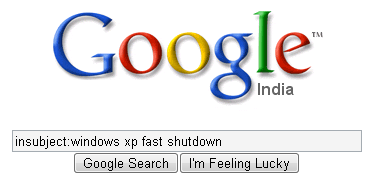
You need to be in the google groups search page before attempting this query; otherwise it might not work correctly. Using the “insubject:” function you can search google groups by the subject line. For instance “insubject:windows xp fast shutdown”


Find related sites:
Suppose you find an interesting website and you would like to find some other alternative to this site then you can do so by using “related:” function. For instance if you want to search an alternative for google.com you can do so by entering “related:www.google.com”


Find links to a specific URL:
You can find the webpages which have a link to a specific URL using the “link:” function. This is really great as it will help you if you own a website, you can easily find out the pages linking to a page in your site. To use it, you need to enter the whole URL after “link:”
For instance “link:http://www.cnn.com”
Well that’s it for now, hope you liked them. If you know more feel free to mention them here.


Whois Lookup service:

You can also search for information on a particular domain name. Just type in “whois domain.com” and hit enter. You’ll get to see the creation and expiry dates of the domain.


Suggests words, phrases and their results:

This is really helpful if you aren’t able to spell a particular word or you would like to know the results a particular word would contain when searched.